 CanbiZ (MickLesk)
f0147a2d99
CanbiZ (MickLesk)
f0147a2d99
Previously, command output during customization and container creation
was discarded to /dev/null, making error logs useless for debugging.

Examples of what was lost:
- apt-get update/install errors during 'Customizing LXC Container'
- pveam download failures during template download (exit 222)
- pct create output showing why container creation failed (exit 209)

Changes:
- Redirect apt-get/apk base package output to BUILD_LOG instead of /dev/null
- Redirect all pveam download output to BUILD_LOG instead of /dev/null
- Add _flush_pct_log() helper that appends pct_create LOGFILE to BUILD_LOG
- Call _flush_pct_log() on every exit path in create_lxc_container()
- pct create output now appears in the combined installation log (Phase 1)

Result: error logs now contain actual command output (apt errors, download
failures, pct create errors) instead of only status messages.

Proxmox VE Helper-Scripts
A Community Legacy in Memory of @tteck






Simplify your Proxmox VE setup with community-driven automation scripts
Originally created by tteck, now maintained and expanded by the community

🎯 Key Features
⚡ Quick SetupOne-command installations for popular services and containers |
⚙️ Flexible ConfigSimple mode for beginners, advanced options for power users |
🔄 Auto UpdatesKeep your installations current with built-in update mechanisms |
🛠️ Easy ManagementPost-install scripts for configuration and troubleshooting |
👥 Community DrivenActively maintained with contributions from users worldwide |
📖 Well DocumentedComprehensive guides and community support |
🔒 SecureRegular security updates and best practices |
⚡ PerformanceOptimized configurations for best performance |
📋 Requirements
🖥️ Proxmox VEVersion: 8.4.x | 9.0.x | 9.1.x |
🐧 Operating SystemDebian-based with Proxmox Tools |
🌐 NetworkInternet connection required |
📥 Getting Started
Choose your preferred installation method:
Method 1: One-Click Web Installer
The fastest way to get started:
- Visit helper-scripts.com 🌐
- Search for your desired script (e.g., "Home Assistant", "Docker")
- Copy the bash command displayed on the script page
- Open your Proxmox Shell and paste the command
- Press Enter and follow the interactive prompts
Method 2: PVEScripts-Local
Install a convenient script manager directly in your Proxmox UI:
bash -c "$(curl -fsSL https://raw.githubusercontent.com/community-scripts/ProxmoxVE/main/ct/pve-scripts-local.sh)"
This adds a menu to your Proxmox interface for easy script access without visiting the website.
📖 Learn more: ProxmoxVE-Local Repository
💬 Join the Community
💬 DiscordReal-time chat, support, and discussions 
|
💭 DiscussionsFeature requests, Q&A, and ideas 
|
🐛 IssuesBug reports and issue tracking 
|
🛠️ Contribute
💻 CodeAdd new scripts or improve existing ones |
📝 DocumentationWrite guides, improve READMEs, translate content |
🧪 TestingTest scripts and report compatibility issues |
💡 IdeasSuggest features or workflow improvements |
👉 Check our Contributing Guidelines to get started
❤️ Support the Project
This project is maintained by volunteers in memory of tteck. Your support helps us maintain infrastructure, improve documentation, and give back to important causes.
🎗️ 30% of all donations go directly to cancer research and hospice care

Every contribution helps keep this project alive and supports meaningful causes
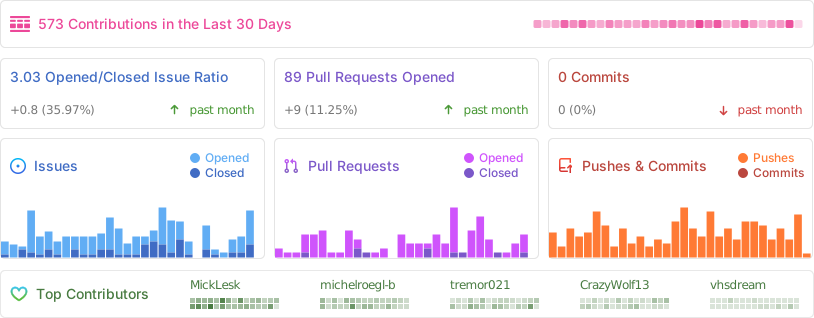
📈 Project Statistics
📜 License
This project is licensed under the MIT License - feel free to use, modify, and distribute.
Proxmox® is a registered trademark of Proxmox Server Solutions GmbH